
SQL Server Authentication Modes
SQL Server Authentication Modes
What is Authentication
Authentication is a process in which we need credentials, in other words username and word, to access the SQL Server.

Figure 1: SQL Server Management Studio (SSMS).
When you open SQL Server Management Studio (SSMS) for very first time you will get the following three things:
- Server Type
- Server Name
- Authentication
1. Server Type
There are the following four types of servers:
- Database Engine: Used for storing, processing and securing data.
- Analysis Services: Used for Online Analytical Processing and data mining functionality.
- Reporting Services: Used for creating interactive, tabular, graphical, or free-form reports from relational, multidimensional, or XML-based data sources.
- Integration Services: Used to do a broad range of data migration tasks. It is a platform for data integration and workflow applications.
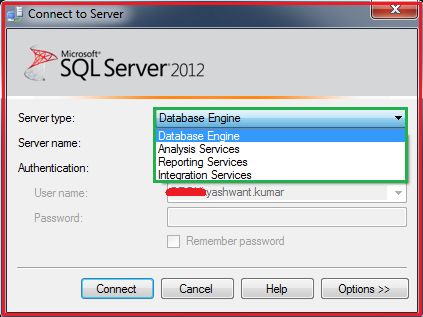
Figure 2: Illustrating server type in SQL Server

2. Server Name
It can be any name of server by which a server can be identified.
3. Authentication
As we already discussed, it is a process in which we need credentials, in other words username and word, to access the SQL Server that is clearly visible in Figure 3.

Figure 3: Illustrating Windows Authentication and Login
Types of Authentication in SQL Server
There are basically the following two types of authentication in SQL Server:
- Windows authentication
- Mixed mode Authentication/SQL Server Authentication
a. Windows Authentication
Requires a valid Windows username and word to access the SQL Server.
b. Mixed mode Authentication
A user can login either via SQL Server authentication or Windows authentication mode to connect to SQL Server.
Example of Windows Authentication Mode:

Figure 4: Illustrating Windows Authentication in SQL Server
The following describes how to check that we are logged in with Windows Authentication Mode or Mixed Mode.
For this simply execute the following query in SSMS:
- Use Master
- GO
- SELECT
- CASE SERVERPROPERTY(‘IsIntegratedSecurityOnly’)
- WHEN 0 THEN ‘Mixed Mode – Allows Both SQL Server or Windows Authentication Mode’
- WHEN 1 THEN ‘Allows Only Windows Authentication Mode’
- END AS [Current Authentication Mode]
- GO

Figure 5: Current Authentication Mode Output

Figure 6: Current Authentication Mode Output
Remember
Remember that when only Windows Authentication is enabled, you can’t login with SQL Server Authentication or Mixed Mode.
Let’s make it clear with an example.
I have created a new login “yashrox” with SQL Authentication.

Figure 7: Creating a new login from security tab (Step 1)

Figure 8: Choosing SQL Server Authentication/Mixed Mode Authentication for new login “yashrox” (Step 2)

Figure 9: New login “yashrox” created with Mixed mode authentication (Step 3)
Now to check Mixed Mode / SQL Server Authentication we will log into SQL Server with the login “yashrox” that was created with SQL Server / Mixed Mode Authentication.

Figure 10: Trying to login with SQL Server Authentication (Mixed Mode)

Figure 11: Getting error when trying to login with SQL Server Authentication
An error occurred when we tried to login with SQL Server Authentication / Mixed Mode Authentication. Why this happened is because Mixed Mode / SQL Server Authentication is not enabled by default as we saw in Figure 5 and Figure 6 also.
Resolution
The resolution for this problem is to enable the Mixed Mode / SQL Server Authentication, so let’s move ahead to enable the Mixed Mode/SQL Server Authentication.
Enabling Mixed Mode/SQL Server Authentication
There are two ways to enable Mixed Mode/SQL Server Authentication mode.
First Method
Step 1
Log into SQL Server with Windows authentication mode with the login name “XYZ\yashwant.kumar” (refer to Figure 4).
Step 2
Right-click on the Server and then click on properties as in the following:

Figure 12: Configuring SQL Server Properties for Mixed Mode Authentication
Step 3
Click on security in the left pane and select SQL Server and Windows Authentication Mode and click OK to save.

Figure 13: Enabling Mixed Mode Authentication
Step 4
Restart SQL Server and try to login with SQL Server Authentication.

Figure 14: Restarting SQL Server after Enabling Mixed Mode Authentication

Figure 15: Checking Authentication mode with query

Figure 16: Checking Authentication mode with other query
Wow! Now this time we are able to login with SQL Server Authentication / Mixed Mode and with both queries we are getting the login mode as Mixed Mode / SQL Server Authentication.
Second Method
Enabling Mixed from Regedit/Registry.
Step 1
Press the Windows key + R to open the Run box. Type regedit and press Enter.
Step 2
Navigate to the registry location HKEY_LOCAL_MACHINE\SOFTWARE\Microsoft\Microsoft SQL
Server\MSSQL11.MSSQLSERVER\MSSQLServer.
In the right panel, change the LoginMode from 1 to 2.
- Windows authentication Only.
- Mixed mode.
Step 3
Restart your SQL Server instance and you can then connect to the server using SQL Server Authentication.

Figure 17: Enabling Mixed Mode Authentication with Registry
This is something about SQL Server Authentication Modes.